Posts

News - Google Engage

Image
Google announced a new service to webmasters, an important tool to acquire new clients.  That new program is called Google Engage . Use Adwords to help you and your clients I applied for this program and was accepted, meaning I had at my disposal training on Google Adwords (online advertising) and a lot of Adword's coupons to divvy out to my clients ($2,000 worth!)  Why is this cool?  Diversity of services gives a competitive advantage.  Not only can you sell your client a website, but you can help them along with selling their product or services.  It is a sort of value-addition to my proposals ($100 coupon for Adwords seems like a nice gesture). So, I applied for the program, the application was easy enough and they (Google) says they will call you, which they did.  I received a call from a nice woman who asked a couple questions and even said my Google Sites websites looked nice. Ooooo, Google badge of honor I took four 20 minute courses....

Business - Drafting and Proposals

Image
Remember quite a while ago when I posted about my small business, Kirksville Web Design?  Well, I laid low for awhile, not really searching for clients or anything.  Eventually, I received some phone calls of interested organizations.  First there was a waste management company, then someone called me on a proposal I made ages ago.  This all got me back in the mood for making websites! (Excitable, I know) I wanted to write about two important business aspects of web design: proposals and drafting.  I also want to show you my new work so you can get inspired too. Inspiration by MOblues.org Proposals In the procurement world you are providing a description of the products and services you plan to provide the client.  Make the proposal clear and concise, no need for legal contract lingo, just make it obvious. Technical assistance (service) can put the client at ease.  Also, let them know you're available to make amendments to the website (servi...

Tips - Useful Gadgets

Image
Gadgets are embeddable elements that can be tools, devices, games, or portals.  Google provides the a suite of useful gadgets related to Google Apps such as Calendar, Forms, Picasa Photos, Text Boxes, etc.  However, have you ever delved into the "more gadgets" option of your "insert" tab?  There's some great stuff, let's review. Let's Explore More Gadgets...! Google Checkout and Paypal Simple Storefront These gadgets are wonderful for implementing e-commerce on your website.  Really, there are two options with Google Checkout, there's a little button for one-item purchasing and a whole store with cart option. I have not tried out Paypal's Simple Storefront, but I can only assume they went with "simple" because it's straightforward.  Paypal is like the industry standard for online shopping, ever since E-bay, Paypal has been the pioneer of safe shopping.  Google Checkout is still rather obscure, but equally effective for cred...

News - Google Science Fair Uses Google Sites

Image
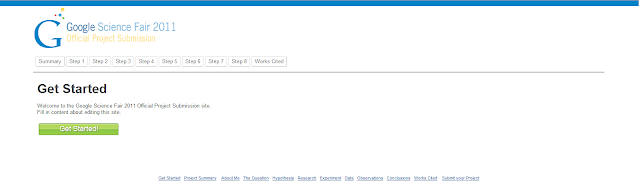
Google has its own science fair, who knew.  And that's great but, how does this relate to Google Sites?  Well, students, budding scientists, what have you, are submitting their projects via a Google Sites website...very cool.  Cool because I like when Google Sites receives exposure, it gives me that nice feeling of affirmation that just because upgrades are slow doesn't mean that Google Sites if off the radar.  This is a quote from the post, which I'll be adding the news archive: "To enter, register online and create your project as a Google Site . Registration is open through April 4, 2011. Please note: you must get parental or guardian consent in order to compete. You can check out the complete rules here . After April 4, we’ll begin judging and will announce our semi-finalists in early May." Google Sites as a vehicle for a project, this is a trend we've seen a lot, especially in the educational sphere.  I'll search "Google Sites" on twit...

Video Tutorial - Domain Setup

So you are ready to buy a domain!  You've saved up your $10 or so, and you want to make the step from obscure subdomain to your own .com. This video will show you how to use GoDaddy.com , the most popular domain registrar, to configure your domain.  It is daunting at first, and somewhat technical, but just run through the motions and you'll commit it to memory. Enjoy the video, sorry I haven't been making them as of late, the busy time of the year is over.  Please follow my blog as it raises my hopes that people like/respect the work I'm putting in to making Google Sites a more pleasant experience. Thanks to my current followers (all 9 of them) they're awesome! 

Tip - Get Inspiration Part II

Image
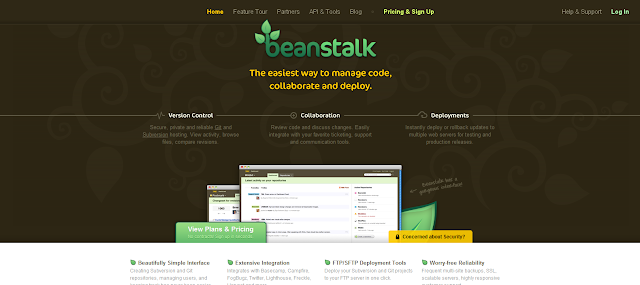
So, I thought I'd make another mock up, since that seems to be my fancy for the month.  This one was a bit more difficult.  Take a look below or click to visit beanstalkapp.com. Notice the centered horizontal navigation - that's not doable with Google Sites, only left orientation.  There's a nice color scheme here.  A three column followed by a four column format towards the bottom with little icons.  The image hugging the bottom of the brown header is a nice effect.  Let's see how I did below. Here's what I did to make it: Background and Title are together one graphic, uploaded to background wrapper, aligned top-center.  Made with GIMP of a desaturated pattern and inverted pattern over brown and toggled for opacity.  The text is the Lobster font with light gradient from top to bottom of text and a focused drop-shadow. Navigation is a unique html color hex code set in content text color and link color. Subtitle text is yellow image of te...

Tip - Get Inspiration

Image
Here was my inspiration.  A website that was at the top of Webcreme.com .  I thought to myself, "I can totally make this with Google Sites!" Here is the mock up.  I used just GIMP and Google Sites.  Visit the website and use it as a Google Sites template. The power of Google Sites and decent graphics skill.  That was fun.

Tip - Create a TRUE Digital Signature

Image
If you design a website, you know about a contact page. You know to list your name, number, email, all of that right? Well, its time we start taking control over that feature, and giving our viewers and clients, and more new and creative way of relaying that informatoin. Digital Signatures A Digital Signature can contain any information you want to have, that your clients or customers will be able to scan using their phone to relay the data stored. Its the barcode that you may see on the back of a item you buy, but instead of numbers, its information! This is my personal digital signature. If scanned with a phone, it will display my name, email, phone, and website. There are many websites out there that you can create one of these items. the best thing is that you can use them on business cards, or flyers, or for information on your site. Microsoft Tag have a really nice and cool feature that you can make your digital sign. point to multiple things. The image below shows what ...

Tip - Getting Into SEO

Image
Sorry it has been awhile since my last post...this time of the year is always hectic.  Anyways, happy to quench the thirst of readers with this next topic. SEO.  If you are new to the game, it means search engine optimization, that in turn means "Why isn't my website on Google?"  There are a couple beginning tips I have for those making their websites public: Make it Public!   Make sure you Google Site is set to viewable by the public.  This is an option, More Actions > Manage Site > Share this Site > Change to Public. Buy a Domain!  This is the biggest step in SEO you take make for your website.  For just $9 - $12 a year you can own a domain, and it is not as difficult as you may think.  I recommend GoDaddy.com, but bypass all the bells and whistles, just buy the domain. Submit to Google!   I don't mean bow down to the power of Google.  If you simply type into to google "submit url to google," click on the first real webp...

News - Social Sites Help Page Rank

Google has released, as part of the their Webmaster Help Youtube channel , information that can help the Google Sites webmaster improve search engine optimization.  The new video discloses that Google now considers social sites in page rankings.  So, your efforts on Twitter, Facebook, and Google Buzz, will get you noticed by Google.  "In what capacity?" you might ask. Google Realtime is a search engine that processes all the most recent social data, while not the most visible avenue it could grow.  Backlinks are still important to Google and remember, it's their goal to properly rank what's relevant and popular.  I've provided the video below. How can I get my Google Site noticed by Google Search? It's one of the most frequent questions on the Google Sites help forum.  You want to be on the front page of a Google search entry, or at least somewhere.  Look forward to my next post on this hot topic.

Business - Supplementary Google Services

Image
Let's jump right in! Google Places Combine Google Maps with your local phonebook and you get something akin to Google Places.  Any business can claim their business listing based on their address.  Recently, Google Places has seen some major activity, like Google Tags and Google Boost. Tags let's you promote your website (among other options).  Boost lets you claim an advertisement slot for a local search.  Overall, it is to your benefit to promote the website you've made with Google Sites with Google Places.  It is a great avenue to help the small business in town.  So, when you make someone a website, be sure to throw this in as a bonus feature. Google Places provides easy visibility for small clients Blogger Most websites nowadays have a complementary blog along with their website.  Blogger is basically push-button publishing and it has a lot more features than Google Sites' Announcement Page.  It's too bad that you can integrate Blo...

Video Tutorial - Image Formatting and Icons

My latest video tutorial for Google Sites.  We've been creating this sample website for a bakery quite steadily. Here's what you an expect to learn in this video: How to insert images by URL How to format images horizontally How to create images as links How to find free icons for your website I hope you enjoy this latest video.  Any suggestions or ideas can be submitted as comments.  Thanks for tuning in.

What's Next for Google Sites?

Image
It has been quite some time since the last significant Google Sites upgrade.  That upgrade made possible the horizontal navigation and drop down boxes that users had been clamoring for. Google's Last Big Upgrade: Horizontal Navigation and Dropdown Boxes, but that was so long ago... So, what is Google cooking up next for us?  Visit the Google Sites forums and you'll see a lot of speculation, and I've summarized and accumulated that information here for you.  Ultimately, Google's direction for Google Sites will determine priorities and we'll analyze the trends Google is promoting. Trend: Intranet Google, it seems, has been targeting businesses and schools for aggressively.  Google renamed their Google Apps Premier Edition to Google Apps for Business.  Evidence that they want to reach an audience that will pay for their product ($50/user, actually). Recent webinars like, Improving Team Collaboration and Productivity with Google Sites , tailor the suggest...

Video Tutorial - Embed Tools from Google

Learn to embed those important tools like Google calendars and Google Docs. See the progress made to our sandbox website http://sites.google.com/site/numsbakedgoods  A Bit of a Summary This video focuses on important elements to any Google Site, that is, using the inherent interactivity of Google Docs and Calendars, etc, to convey and gather information.  Google Doc's forms are fairly simple and I show you where the input information shows up and how to be notified via e-mail. Note: Remember it is important to make your Docs and Calendars public for them to be seen on a public website.  Also, make sure that your Calendar has a relevant time zone, this setting is available in..."settings!" Google Sites makes it wonderfully easy to implement these practical applications.  Love Google Sites and the Google Apps package.

Business - Selling Points of Google Sites

Image
When I have proposed building a website for a business or organization, there are several selling points I try to drive at.  That is, I focus on the advantages of using Google Sites to build their website.  Let's look at some of these: There are no initial investments to build a Google Site - The designer doesn't have to purchase any software, have taken any classes, or even provide hosting.  The customer is able to buy at cost your time and effort.  You can undercut the competition!  Custom sites can cost $400+, you can do better than that. Visit the Links Page for a bunch of free resources like GIMP , Dafont.com , and Stock Exchange . GIMP, Free Photo Editing and Design Program   The customer is not out of the loop, they can participate in uploading and creating content.   Since you are using a very user-friendly medium, the customer can learn to get involved instead of always paying or bothering the webmaster.  Share you site to the cust...

Video Tutorial #4 - Page Layout, Pictures, Animations

Here are the main points of my latest video: Planning Images/Pictures Inserting .GIF Animations Selecting Page Layout Formatting Text and Horizontal Lines (HTML) If you would like a topic specifically covered in next week's video please comment.  Thanks for tuning in and please follow my blog for updates.  You can visit my youtube channel at http://www.youtube.com/user/kirksvillewebdesign .

Google Sites Tip - Designing a Nice Background

Image
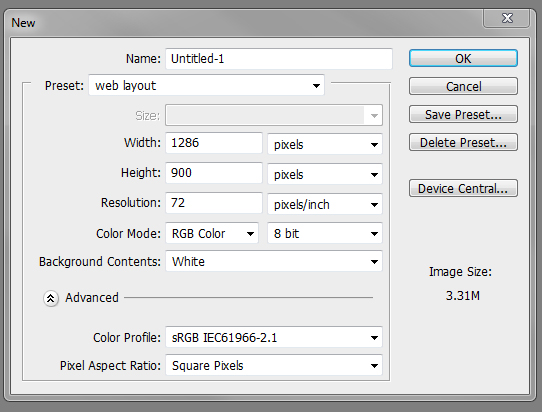
Many sites, you will start to notice, have a main area with the navigation, body, etc, and a nice background that compliments the site. If you're designing in Photoshop I suggest using a page size of 1286x900. This gives you ample room to work with a site thats going to be center in the screen. Try saving at least 150 px, equal on both sides to allow yourself a good amount of space for a real creative background. Or you can try designing your main area with no more than a 700 px width. Anything more and you may want to increase that 900 px width to maybe 1200px. Just remember try and keep a min. of 150 px on both sides. So lets say that with your Side Menu and Main Content Area, you have a width of 900px. With your background being 150 on each side, you will make your over all image size 1200px wide. Just remember to add guide lines that are 900px apart to keep you from designing over your set area. go here for finish view You can use anything you like to make a really eye-catchi...

Google Sites Tip - The File Cabinet Page

Image
When you click create page in your Google Site you can choose from four primary types of pages.  One essential page is the 'File Cabinet' page. Try Out a File Cabinet, Your Behind the Scenes Storage! Rather than adding attachments at the bottom of your pages use File Cabinet.  Here's how: Create a File Cabinet Page Add Files Right Click the 'Download File' link and Copy Link Location Create a Link on your public web pages Paste your Link Add Your File then Right Click the Download to copy Link Location Now your visitors can easily click and view your uploaded files.  .PDF files should open automatically in the visitor's browsers.  .DOC files will be downloaded when the link is clicked, so inform your visitors accordingly. If you copy the link for 'View File' from your file cabinet Google will open a Google Doc, which is messier and less straightforward for visitors. Enjoy this little tip for your behind the scenes storage (I wouldn...

Google Sites Tip - Using JotForm Contact Forms

Image
Many of us have come to realize that Google Sites doesn't offer a nice contact form to manage visitors comments and questions.  However, http://www.jotform.com offers Google Site developers a fast and very creative way to make forms that are easy and simple to manage. Its a semi-free service, meaning it gives you a free amount of web storage, but you can upgrade for more space. Simply Make an account, (email, password) and start designing. You can use the templates offered by JotForm or you can start from scratch. I find working with a blank slate is the best. You have many different items to pick from to create your forms. Size, colors, fonts, there really isn't anything you can not custom design in these forms. Options you can work with include: FORM TOOLS, QUICK TOOLS, SURVEY TOOLS, POWER TOOLS, PAYMENT TOOLS. As you see, its some real powerful items that can be used to design your form. So play around and have fun! Hope this add some nice creative design to just having...

Google Sites Tutorial - Background and Favicon Design

The latest video tutorial for Google Sites web design.  Learn how to design a background using GIMP, a free photoshop-like application that has been of tremendous use to me.  There was so much good information that I had to split this into two parts.  I had some mistakes while working with GIMP because I'm still a novice to be honest, but hey we all learn from mistakes. Part 1 Part 2

My Small Business - Website Improvements

Image
I recently upgraded by business' website appearance to reflect professionalism and clean design.  A big part of web design is of course graphic design.  I am not a professional graphic designer so I use works that artists provide free to the web design community.  It is important to make sure any images, photos, etc are approved by the artist for commercial application.  This narrows the field quite significantly. Here are my favorite sources for free, commercial use graphics: http://www.sunipix.com http://www.sxc.hu http://icons.mysitemyway.com/ http://www.devwebpro.com/developer-icon-sets-collection-of-the-best-free-to-both-personal-commercial-use-icon-sets/ (Note: Make sure the images you use are specifically approved for commercial use by author/artist) Take a look at the new site at www.kirksvillewebdesign.com .  Here's a screenshot for the timid. Pretty Nice Eh?  Google Sites can look good, I promise!

Google Sites Tip - Favicon

Image
Definition : A favicon is the icon that is displayed in browser tabs, bookmarks, etc. Google Sites allows the uploading of a custom favicon.  The favicon will be displayed for all pages of the site and is one of the simple things that makes your site more credible. To make and upload a favicon is simple.  First of all, get the free graphics and photoshop-like program GIMP .  It is an essential program for web designers like myself.  I use it for all my graphics.  Open GIMP Create 'New' Specify a 32x32 pixel canvas Create your symbol/icon Save and name as favicon.ico, choose the 32 bpp option In your Google Site go to Manage Site > Attachments Click Upload and select your favicon.ico file It's that easy!  Enjoy your new favicon and differentiate yourself from the typical Google Sites crowd. That Favicon is Boring Anyway

Google Sites Tutorial - Pages and Navigation

I am posting here for your enlightenment a walkthrough tutorial for creating pages and setting up a navigation bar. The video is pretty self-explanatory so I needn't provide much of an introduction.  However, I make reference to this post on designing a background with the 'blank slate' theme. Please take note of the tips and tricks mentioned in the video, these may things even a Google Sites' users may have overlooked.

My Small Business - A History

I submitted to Google Sites at Sitesstories@gmail.com, the history of my little business to date.  Here is that story. Kirksville Web Design - A small business in a rural town of Missouri (Kirksville, MO) that has succeeded in creating professional-looking websites, using the Google Sites engine, for businesses and organizations. We, I mean I (we sounds better in the business world I think), first made a website for a local friend plumber starting up a business.  It was more like I commissioned him than he commissioned me to do his website.  I started making what is now www.nemoplumbing.com .  It was my first domain buying, analytics processing, search engine optimization experience.  I also took advantage of Google Places and registered the business there.  Year to date it has received 440 visits. Then I made a website for a more prominent business run by a friend, Foreman Heating and Air Conditioning.  I started to get more into grap...

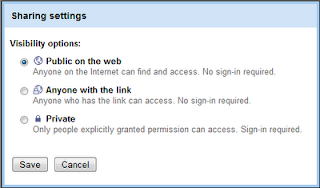
Google Sites News - Share Settings

Image
Google Sites, and really Google Apps, has been improved in terms of making it easier to share your website.  The share settings used to be part of the Manage Site contents, but now it has been moved to the More Options drop down menu next to Create and Edit Page. Sharing has never been something I've used very much.  I always make my sites public and I limit collaborator privileges (call me a control freak).  Nevertheless, it is always great to be able to do something more easily.  Google Sites sharing is now similar to that in other Google Apps like Google Docs. Remember your options: Anyone can see your site (public) *will be indexed eventually and then not very well Only those with a link can see your site (semi-private) *will not be indexed Only those given permission can see your site (mostly-private) *will not be indexed   For Google's post on website sharing see http://googleappsupdates.blogspot.com/2010/11/simplified-sharing-experience-extended....